


Working with Google Tag Gateway
What is Google Tag Gateway?
Google Tag Gateway (GTG) is a feature that lets advertisers serve Google tags (gtag.js and gtm.js) from their own domain instead of from googletagmanager.com. For example, the tag loads from https://www.yourdomain.com/gtm.js through a CDN proxy like Cloudflare, Fastly, or CloudFront, rather than from https://www.googletagmanager.com/gtm.js.
GTG doesn't collect any additional data. It only changes how the script is delivered, with the goal of improving performance and reliability. Consent Mode keeps working as normal, and GTG respects every consent choice your users make in the cookie banner.
More information from Google: How Google Tag Gateway works
How GTG affects consent load order
In a standard setup, the consentmanager by iubenda CMP script loads before any Google tags, so consent signals reach Google before tracking starts.
With GTG, the Google tag is served from your own domain through a CDN. In some configurations, especially with one-click CDN injection, the CDN automatically injects the Google tag at edge level. This can place it ahead of the CMP script, which breaks the correct consent signal order:
|
Correct order ✅ |
Problematic GTG order ⚠️ |
|
1. CMP loads |
1. GTG injects the Google tag |
|
2. CMP sends consent default |
2. Google tag fires (no consent signal yet) |
|
3. Google tag loads |
3. CMP loads and sends consent default, too late |
When the Google tag fires first, it doesn't see a consent default signal. We call this late consent. The result: data may be collected before consent is established, or consent signals may be ignored entirely.
One-click CDN injection is the most common cause of late consent in GTG setups. It speeds up the rollout but takes load-order control away from you, which is exactly the control the CMP needs to keep tracking compliant.
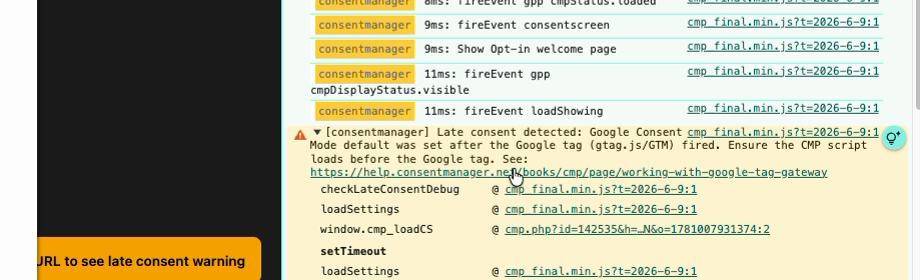
When late consent happens on a page using consentmanager, the browser console surfaces a warning that links to this page:
How to verify if GTG is active on your site
- Open your website in an incognito window.
- Open DevTools (F12) and go to the Network tab.
- Search for gtm.js or gtag.js.
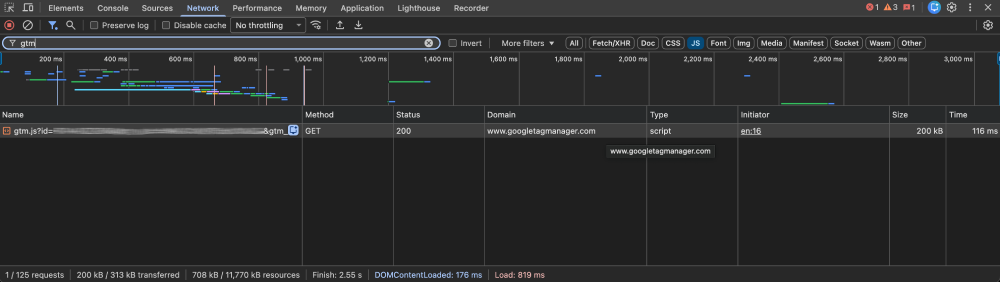
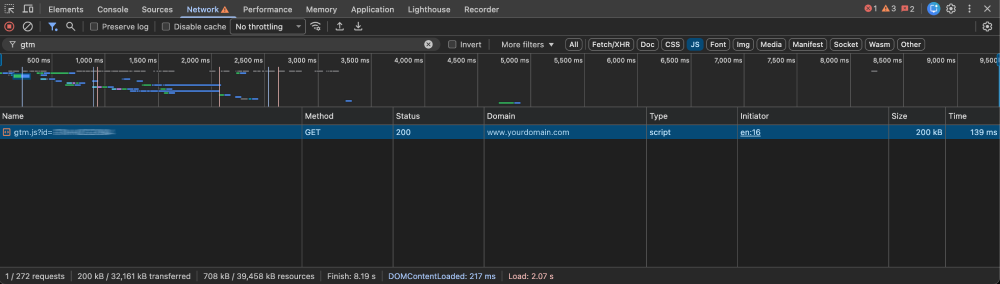
- Check the domain the file loads from:
From googletagmanager.com or google-analytics.com: GTG is not active.
Not active:
From your own domain (e.g., yourdomain.com or www.yourdomain.com): GTG is active.
Active:
Alternatively, run this in the Console tab:
document.querySelectorAll('script[src]')
Look for any script where src contains /gtag/js or /gtm.js but points to a non-Google domain. For more on identifying GTG-enrolled tags, see Google's Tag Manager Help on Google Tag Gateway.
What to do if late consent is detected with GTG
The consentmanager diagnostic tool flags late consent as an issue under your site's Monitoring → Overview view:
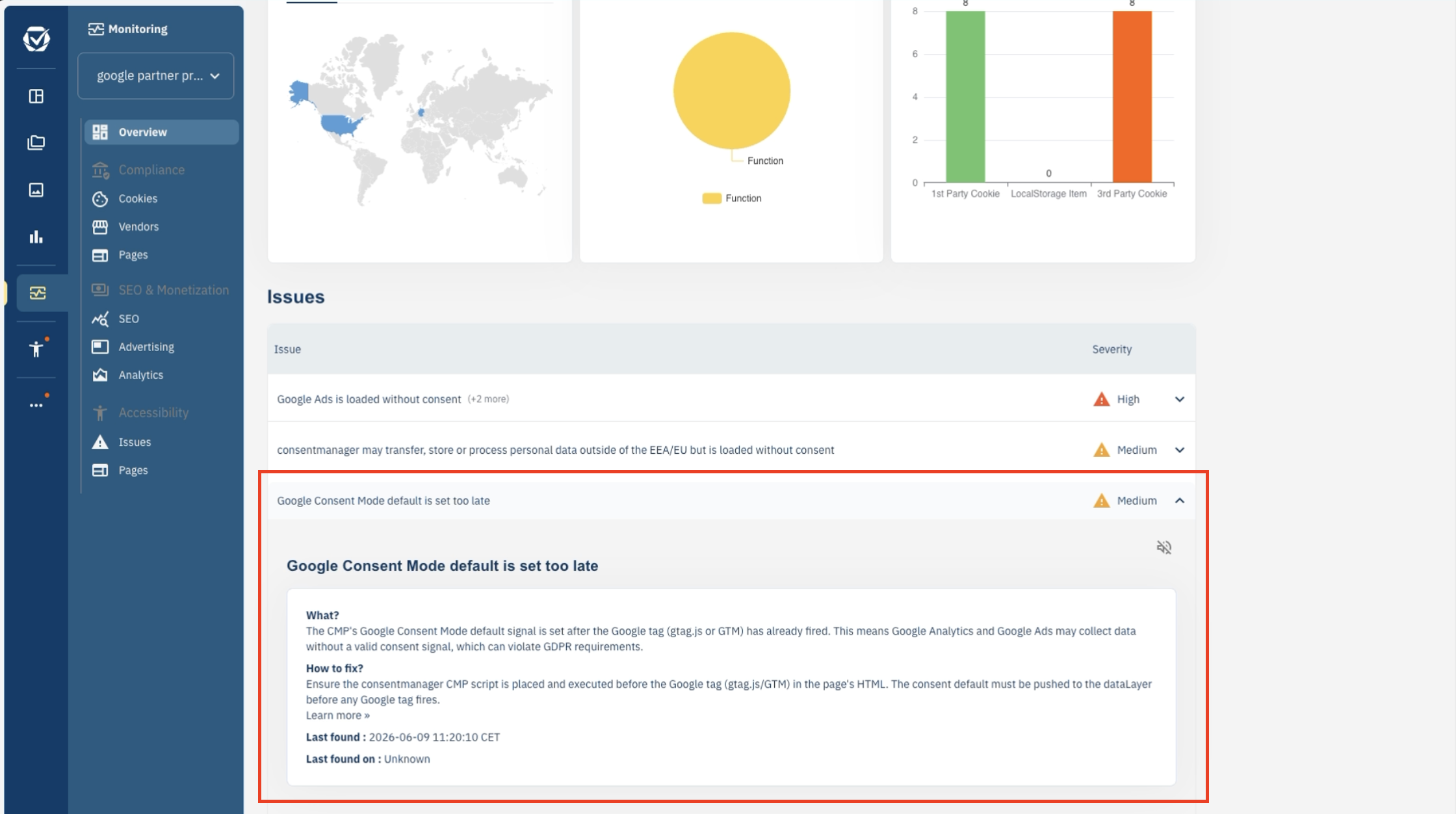
If the diagnostic tool or debug mode reports a late consent warning and you've confirmed GTG is active, you have three options to resolve it.
Option 1: Adopt U+C (recommended)
Enroll in User + Consent (U+C), Google's advanced consent mode. With U+C, Google's infrastructure natively understands and respects CMP consent signals regardless of script load order. U+C is also compatible with manual GTG setups, which is why we recommend it for any site running GTG-enrolled tags.
To enable U+C:
- Contact your Google representative or apply through Google's enrollment process.
-
In consentmanager, confirm all four consent signals are configured:
ad_storage,analytics_storage,ad_user_data,ad_personalization. - Enable Data Transmission Controls (DTCs) and Global Consent Defaults in your consentmanager settings to match your tracking and compliance needs.
When DTCs or Global Consent Defaults are active, your consentmanager banner is configured to grant consent automatically in regions where the banner does not appear, so measurement keeps working as intended.
U+C is the recommended path for sites using GTG-enrolled tags. It's the only option that works reliably with manual GTG and removes script-order timing as a risk.
Option 2: Deploy GTM via GTG
This way the CMP initializes before any other tag fires, even when GTM itself is delivered via GTG.
Steps:
- Create a new tag in GTM for the consentmanager script.
- Set it to fire on All Pages with the highest priority (for example, priority 999).
- Make sure no other tag fires before it.
Option 3: Set up GTG manually with controlled script order
If you manage GTG configuration directly, without GTM, you can adjust your CDN or server setup to control script load order. Two ways to do this:
- Configure your CDN to inject the consentmanager CMP script before the Google tag script, or
- Exclude the Google tag from CDN-level automatic injection and load it manually in your page HTML, after the CMP script.
This option needs direct CDN or server access and a technical understanding of how scripts are injected.
Summary
|
Option |
Difficulty |
Best for |
|
U+C (User + Consent) |
Low. Contact Google. |
Most sites. Recommended. |
|
GTM container via GTG |
Medium. Requires GTM setup. |
Sites already using GTM. |
|
Manual GTG script order |
High. Needs CDN expertise. |
Advanced setups only. |
If you're not sure which option fits your setup, get in touch with consentmanager support and we'll walk through it with you.
