


Working with multiple languages
Setting the display language for a CMP
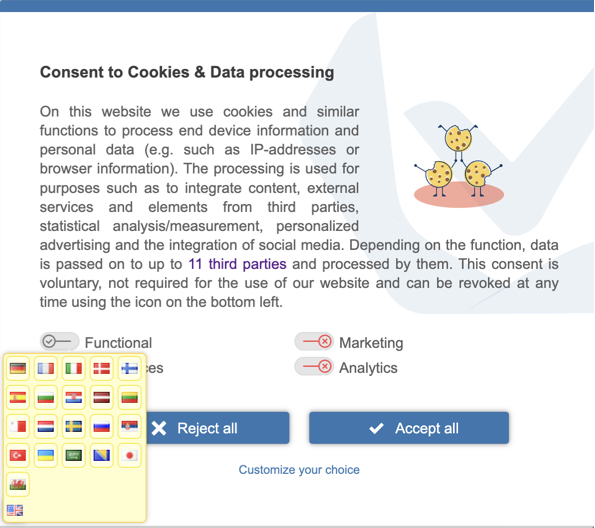
By default the CMP displays the consent message in one of the supported languages, based on the language set in the visitor's browser. If the browser language doesn't match any supported language, the system falls back to the Default language set in the CMP. Visitors can change the displayed language at any time by clicking the flag icon in the lower-left corner of the consent layer:
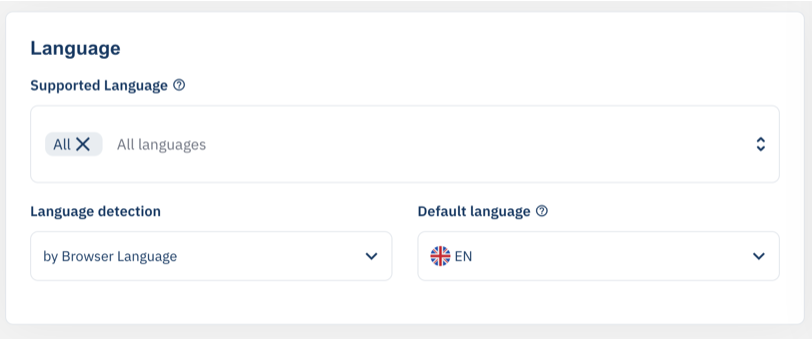
- Click CMPs and edit the CMP you want to configure. Stay on the General tab.
- Scroll to the Language block.
- Under Supported Language, select the languages you want to make available to visitors. The list includes both system languages and any custom languages defined in your account.
- Set Default language to the language the system should fall back to when no other match is found.
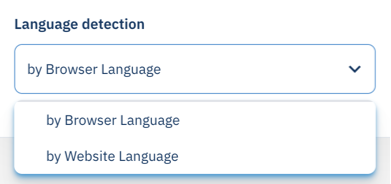
- Under Language detection, choose how the system should detect the visitor's language: by Browser Language (default) or by Website Language. See "How language detection works" for details.
- Save the changes.
How language detection works
In the Language detection setting you have two options for how the CMP should detect the user's language: by browser language (default) or by website language.
Language detection by browser language
To find the best language for the user, the system checks the browser language (the languages set in the browser as preferred for websites). It then checks which of those languages match the supported languages set in your CMP. For example, let's assume the following browser settings:
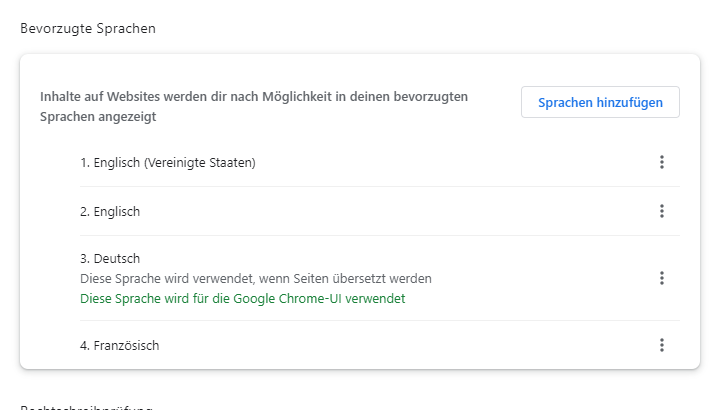
The browser tells the website that it prefers EN-US, with alternatives EN, DE, and FR. The system compares this with the CMP settings. For this example, let's assume the following CMP settings:
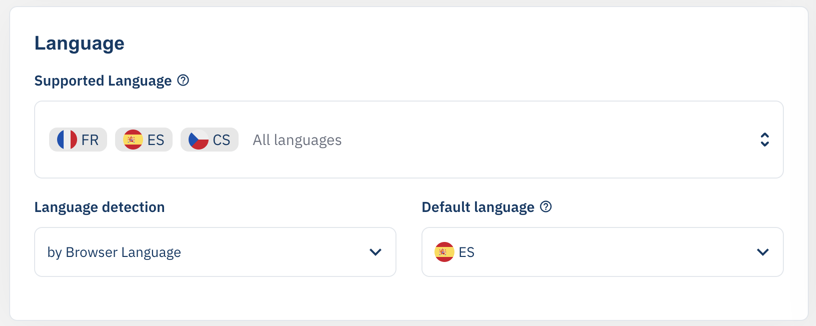
As a result, the system displays the texts in FR, since it's the only matching language. If both FR and DE were in the CMP's supported languages, the system would display the consent banner in DE. If no language can be matched, the Default language (here ES) is used.
Language detection by website language
When this setting is enabled, the system follows the same logic as above, but uses the website information instead of the browser's language. It analyzes the <html> element and the page URL in this order:
- If <html xml:lang="xx"> is present, it is compared to the CMP languages. No other checks (2, 3, 4) run. For locales, the language code comes first, followed by the country code (e.g. pt-BR). The system also matches non-locales with locales (e.g. xml:lang="pt-br" matches language "pt").
- If <html lang="xx"> is present, it is compared to the CMP languages. No other checks (3, 4) run. Same locale rules as above (e.g. lang="pt-br" matches language "pt").
- The first part (subdomain) of the hostname is analyzed. If xx.domain.com is present and matches one of the CMP languages, it is used and no other checks (4) run. For locales, the system checks both orders (e.g. pt-br.domain.com and br-pt.domain.com).
- The path is analyzed. Possible matches: domain.com/xx/..., domain.com/xx-yy/..., domain.com/xx/yy/..., domain.com/yy-xx/..., and domain.com/yy/xx/... (where xx is the language code and yy the locale).
Setting the translation for a text
To change the texts displayed in the consent layer, log into your account and follow these steps:
- Click Designs and select the design you want to edit.
- The design view shows the Settings, Preview, and Text sections side by side. Under Text you'll find all the strings for each language and each selected legislation, including custom texts.
- Change the texts and save the changes.
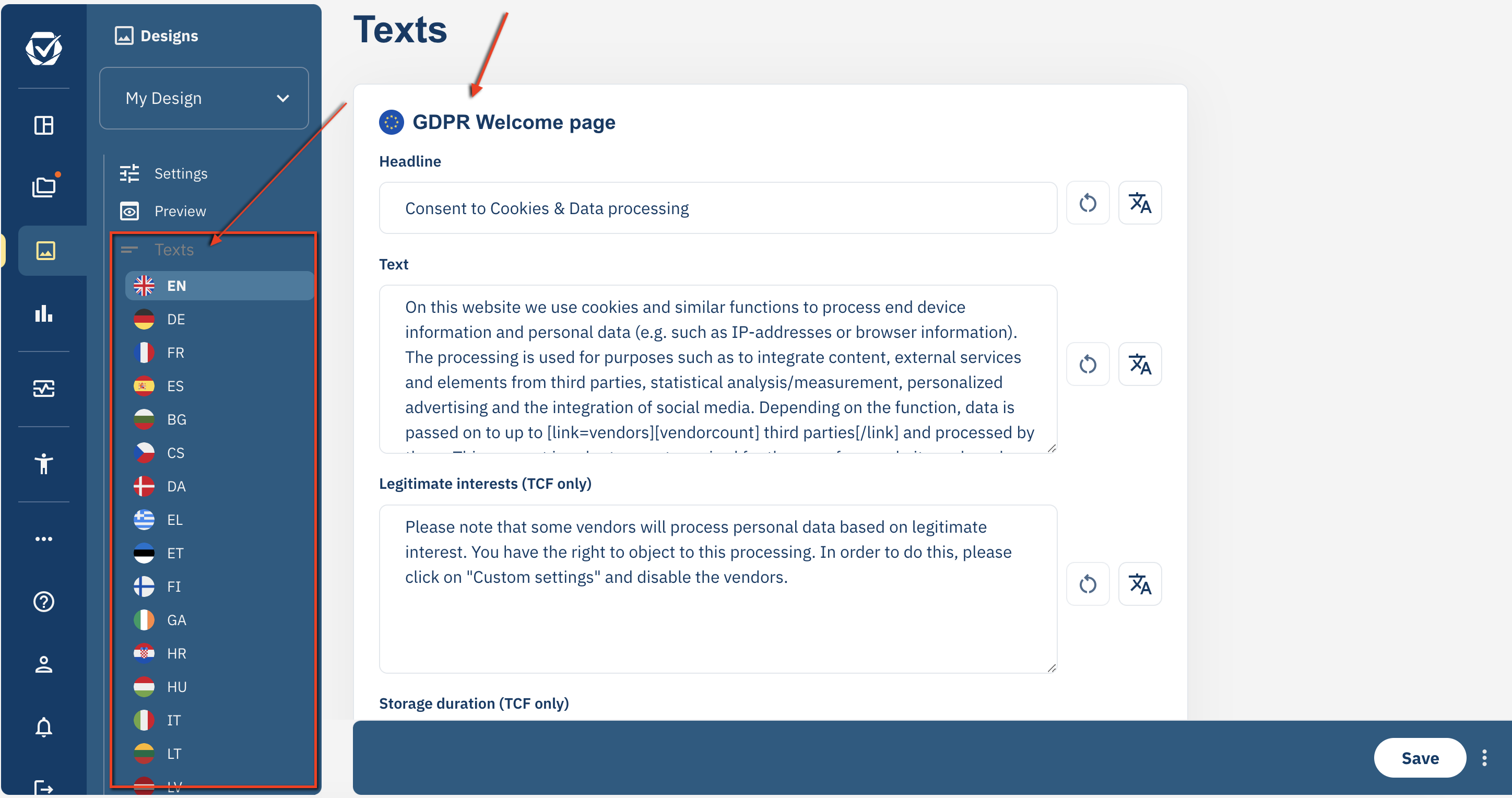
Please note: If you set a translation to an empty string, the system inserts the default text again. To hide a specific text, use a space character.
Setting the translation for a custom purpose
For each custom purpose created in your account you'll find a field in the Texts section inside the purpose settings, where you can translate the name and description into other languages. For any untranslated language, the system uses the original name and description.
To translate a custom purpose:
- Click CMPs > Purposes and select the custom purpose you want to edit. Custom purposes are identified by a c prefix (e.g. c1, c2, ... cXY).
- Under Name translations and Description translations you'll find the default text (marked as ALL) and the option to add custom strings by clicking the + button.
- To add a translation manually, click the + button next to the name or description and select the language locale from the dropdown. The list includes both system languages and any custom languages defined in your account.
- To translate a string into multiple languages at once, click the translate icon next to the string. In the Languages to translate dialog, select all the languages you want and click Translate.
- Save the changes.
Please note: If you set a translation to an empty string, the system falls back to the original name and description for that language.
Setting the translation for a vendor
For each vendor enabled in your CMP you'll find a field in the Texts section inside the vendor settings, where you can translate the name and the description into other languages. For any untranslated language, the system uses the original name and description provided by the vendor.
To translate a system vendor:
- Click CMPs > Vendors and select the system vendor you want to edit.
- Under Description translations you'll find the default text for all available languages and the option to add custom strings by clicking the + button.
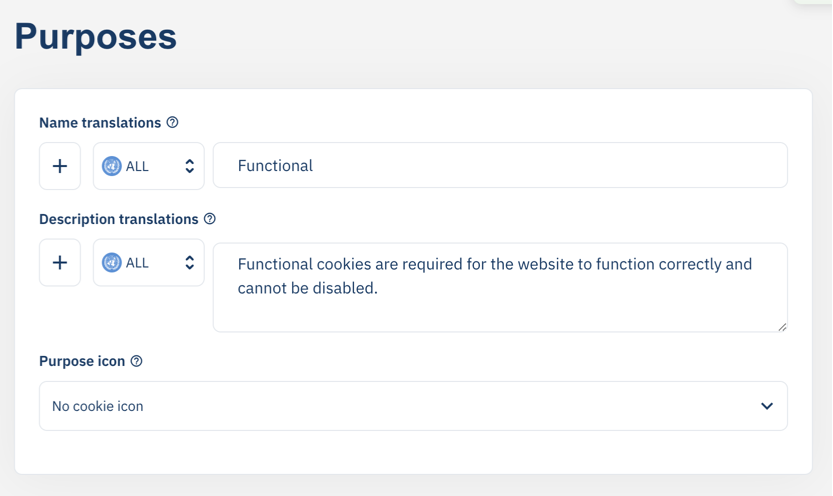
- To add a translation manually, click the + button next to the flag and select the language locale from the dropdown.
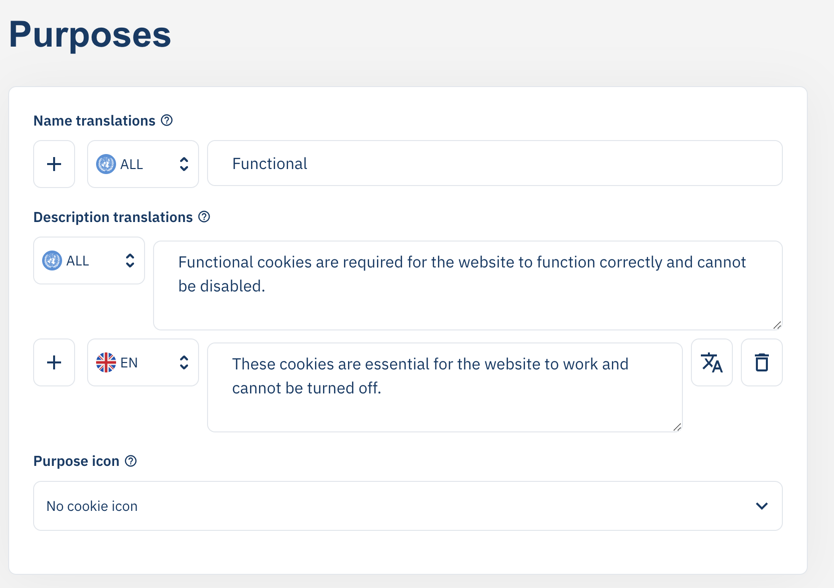
- Save the changes.
Important: System vendors cannot be automatically translated into an unsupported language. In that case, the translation must be done manually.
Please note: If you set a translation to an empty string, the system falls back to the original name and description for that language.
Setting privacy pages based on language
To direct visitors to the privacy page in their language:
- Click CMPs and edit the CMP you want to configure.
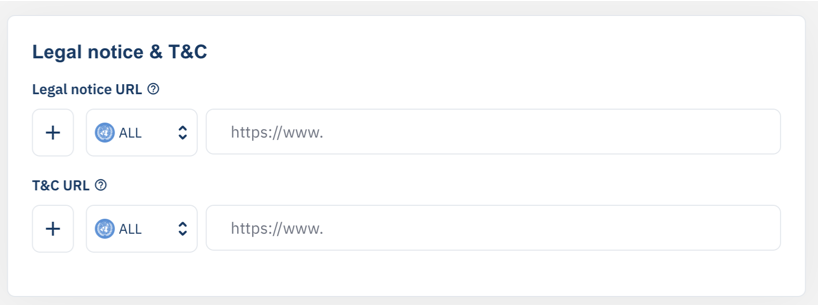
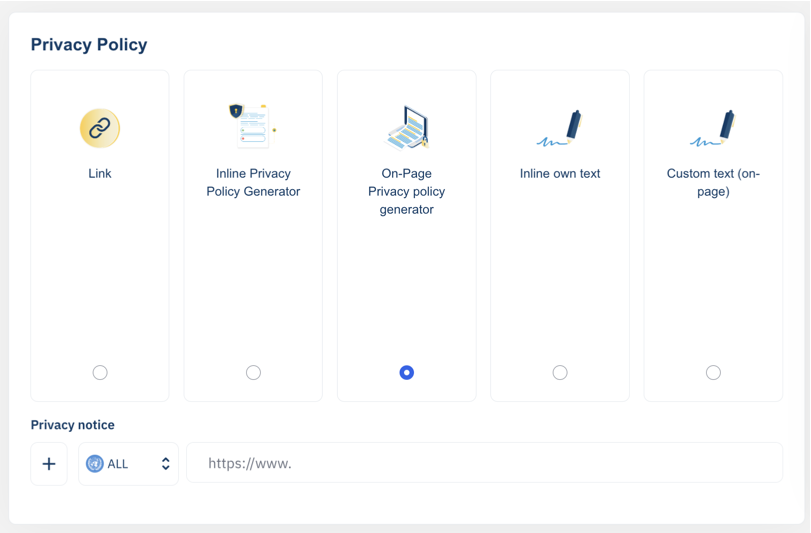
- Go to the Privacy Policy tab. Here you can configure three localizable URLs: Legal notice URL, T&C URL, and Privacy notice.
- For each field, the default URL is marked as ALL and is used for any language without a specific override.
- To add a localized URL, click the + button next to the field and select the language locale from the dropdown. The list includes both system languages and any custom languages defined in your account.
- To translate a URL into multiple languages at once, click the translate icon next to the field and select the languages from the Languages to translate dialog (same workflow as for custom purposes).
- Save the changes.
Supported languages
The following languages are currently supported in the system:
- English (EN)
- German (DE)
- French (FR)
- Spanish (ES)
- Bulgarian (BG)
- Czech (CS)
- Danish (DA)
- Greek (EL)
- Estonian (ET)
- Finnish (FI)
- Irish (GA)
- Croatian (HR)
- Hungarian (HU)
- Italian (IT)
- Lithuanian (LT)
- Latvian (LV)
- Maltese (MT)
- Dutch (NL)
- Norwegian (NO)
- Polish (PL)
- Portuguese (PT)
- Romanian (RO)
- Slovak (SK)
- Slovenian (SL)
- Swedish (SV)
- Russian (RU)
- Serbian (SR)
- Chinese, simplified (ZH)
- Turkish (TR)
- Ukrainian (UK)
- Arabic (AR)
- Bosnian (BS)
Creating custom languages
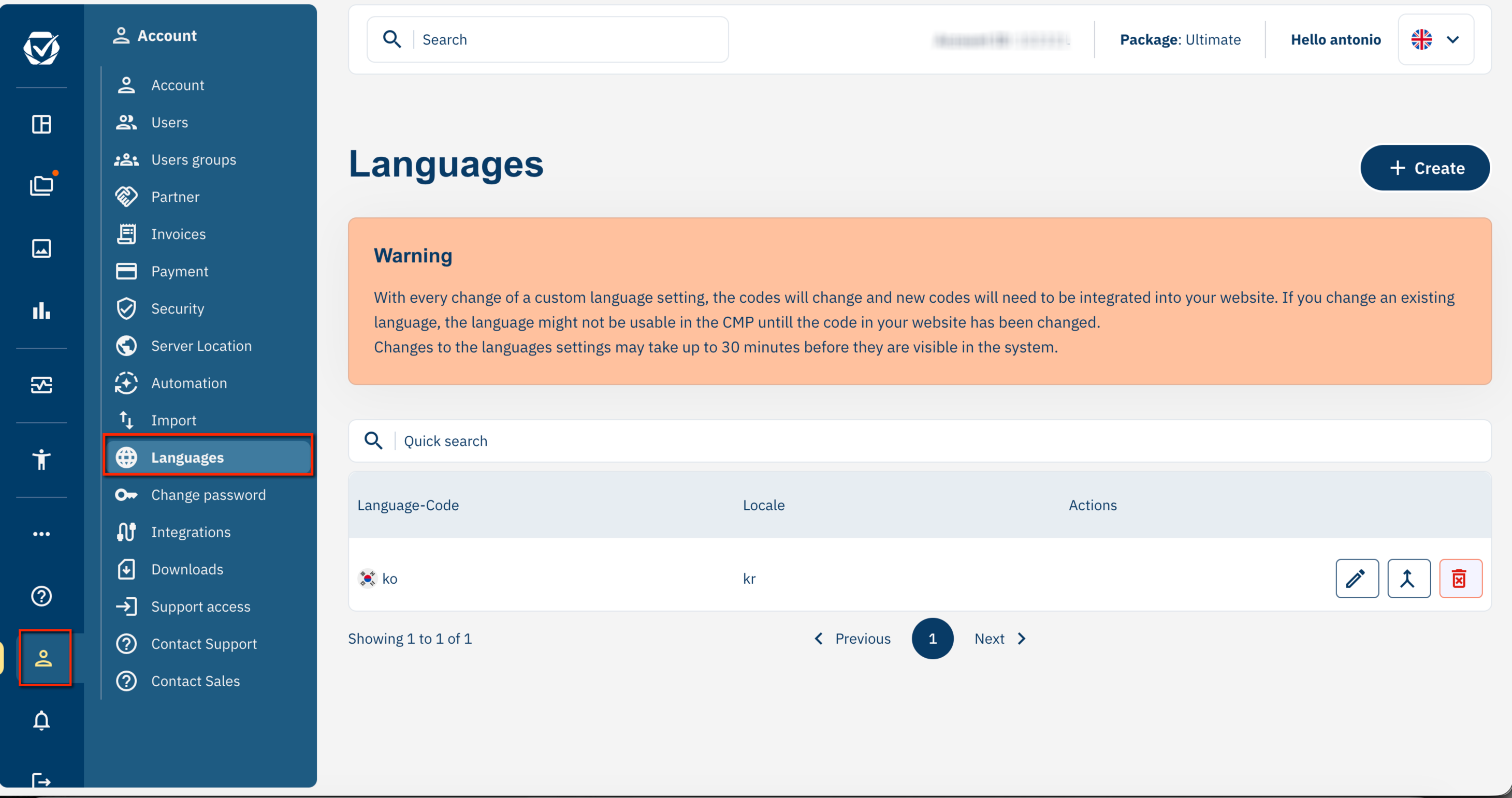
To work with languages that are not yet supported by the system, you can create your own custom languages under Account > Languages. A custom language consists of a language code (ISO 639-1, 2-letter code) and an optional locale (country code, ISO 3166-1 alpha-2). Once a new language is created, it can take up to 30 minutes until the language is visible in your system. Custom languages can be used in the same way as system languages.
To create a custom language:
- Go to Account > Languages and click + Create.
- Enter the language details:
- Language code (ISO 639-1, 2-letter code), e.g. ko for Korean, zh for Chinese.
- Locale (optional, country code, ISO 3166-1 alpha-2), e.g. KR for Korea, TW for Taiwan.
The resulting language identifier combines both values, e.g. ko-KR or zh-TW.
- Save the changes.
Please note: It can take up to 30 minutes before the new language becomes visible in the system.
Enabling the custom language in your CMP
Once the custom language is created, enable it in the CMP that should use it:
- Click CMPs and edit the CMP you want to configure. Stay on the General tab.
- Scroll to the Language block.
- Under Supported Language, select the custom language you just created. The list includes both system languages and any custom languages defined in your account.
- Save the changes.
Mandatory step: If your website uses Automatic or Semi-automatic blocking mode, refresh the integration script on the site every time you add a custom language to the CMP. Without this step, the new language is not available to visitors.
Refresh the integration script
To refresh the script:
- Go to CMPs > Websites > Copy & Paste > Automatic Blocking / Semi-automatic Blocking.
- Copy the new script as the page suggests.
- Replace the existing script in the <head> of your website with the new one.
